How to Print Stickers at Home: A Beginner’s Guide for US Letter and A4
Everything you need to print cute stickers at home: the right sticker paper, printer settings, Actual Size printing and easy cutting tips.
To print stickers at home, open the sticker PDF that matches your paper (US Letter or A4), set your printer to Actual Size / 100%, print on white full-sheet sticker paper, let the ink dry and cut around each design with scissors. That is really all there is to it. Below, we walk through each step so your first sheet comes out crisp, colorful and the right size.
What you need
- A printable sticker file. Our sticker sets include print-ready PDFs plus transparent PNGs.
- An inkjet or laser printer. Any ordinary home printer works.
- White full-sheet sticker paper made for your printer type (inkjet or laser). Check the pack.
- Sharp scissors, or a craft knife and cutting mat for small details.
Step 1: Choose the right paper size
Paper sizes are different around the world, and printing the wrong one is the number one reason stickers come out the wrong size.
| Where you live | Standard paper | Size |
|---|---|---|
| USA, Canada, Mexico | US Letter | 8.5 x 11 in (216 x 279 mm) |
| UK, Europe, Australia, most other countries | A4 | 210 x 297 mm (8.3 x 11.7 in) |
Every RockPaperPop sticker set includes both, so simply pick the PDF that matches the sticker paper in your printer.
Step 2: Pick your sticker paper
Sticker paper comes in matte and glossy finishes. Matte is easy to write on and looks soft and paper-like, which is perfect for planner labels. Glossy makes colors pop and suits decorative stickers. Whichever you choose, make sure it says inkjet or laser to match your printer, and that it is white: home printers cannot print white ink, so the white borders around each sticker come from the paper itself.
Tip: Print one test sheet on plain paper first. It costs almost nothing and lets you check the size and colors before you use a sticker sheet.
Step 3: Use the right print settings
- Open the PDF in a PDF reader such as Adobe Acrobat Reader or your computer’s built-in viewer.
- In the print window, set Scale to Actual Size or 100%. Turn off Fit to page or Shrink to fit.
- Choose the paper type closest to your sticker paper (for example Glossy photo or Matte) and the best quality setting.
- Load one sheet at a time so it feeds straight.
Many of our sticker READMEs include a reference measurement, so you can check with a ruler that your print came out at the right size.
Step 4: Let it dry, then cut
Give inkjet prints a few minutes to dry, especially on glossy paper. Then cut around the white border of each sticker. Curved scissors make round shapes easier. For tiny stickers, cut the sheet into rows first, then cut each sticker.
Can I use a Cricut or Silhouette?
Our files are designed for printing and cutting by hand. They are PNG and PDF files and do not include SVG files or cutting-machine registration marks. Experienced crafters sometimes set up their own print-then-cut projects using the PNGs, but we cannot promise compatibility with every machine.
Using the stickers digitally
Prefer a paperless planner? Import the transparent PNG files into GoodNotes, Notability or any app that accepts images, then resize and place them on your digital pages.
Troubleshooting
- Stickers are too small or too big: your printer was set to Fit to page. Reprint at Actual Size / 100%.
- Colors look dull: choose a higher quality setting and the correct paper type.
- Ink smudges: let the sheet dry longer, or try matte paper.
- The edge of the design is cut off: check you opened the PDF for your paper size (Letter vs A4).
Ready to try it? Start with one of the sticker sets below, or browse every printable.
Related reading
- What are kawaii stickers? Meaning, styles and ideas
- Best sticker paper for printable stickers
- US Letter vs A4 printables
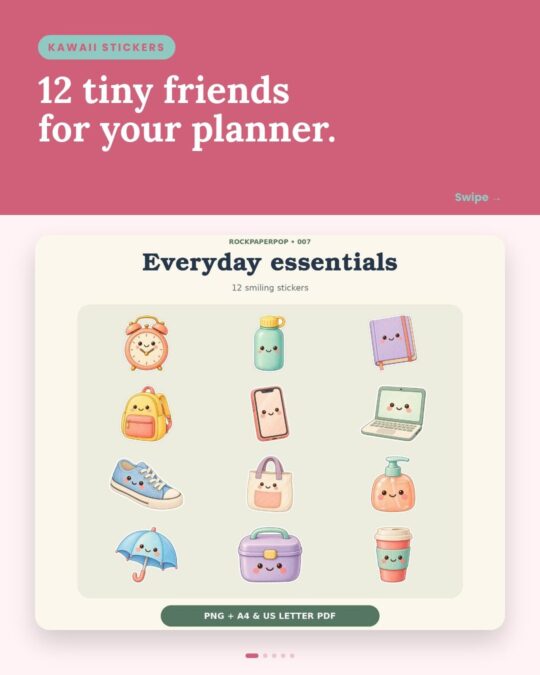
Printables for this: Everyday Essentials Kawaii Stickers and Cute Cozy Planner Stickers (instant download on Etsy).
Printables from this post